
Switch to BillPad accepts invoice, product and client exports in CSV or XLSX format. You review the proposed changes before confirming them. Keep the original export and make a BillPad backup first if you already have records in this workspace.
Bring over your records
- In the old app, export the invoice report, product list or client list you want to move. Use the source-specific guide below for known format details.
- Open BillPad Settings and choose Start import under Switch to BillPad.
- Select Invoices, Products or Clients, then choose the source app if useful.
- Choose Choose file and select a CSV or XLSX file. Files must be within 5 MB and 5,000 rows; column names belong in the first row.
- Review the detected data type and source. Open Match columns to correct any mapping.
- Confirm DD/MM · 3 April or MM/DD · March 4 if dates are ambiguous.
- Inspect the totals, warnings and skipped rows, then confirm the import using the button showing the document or record count.
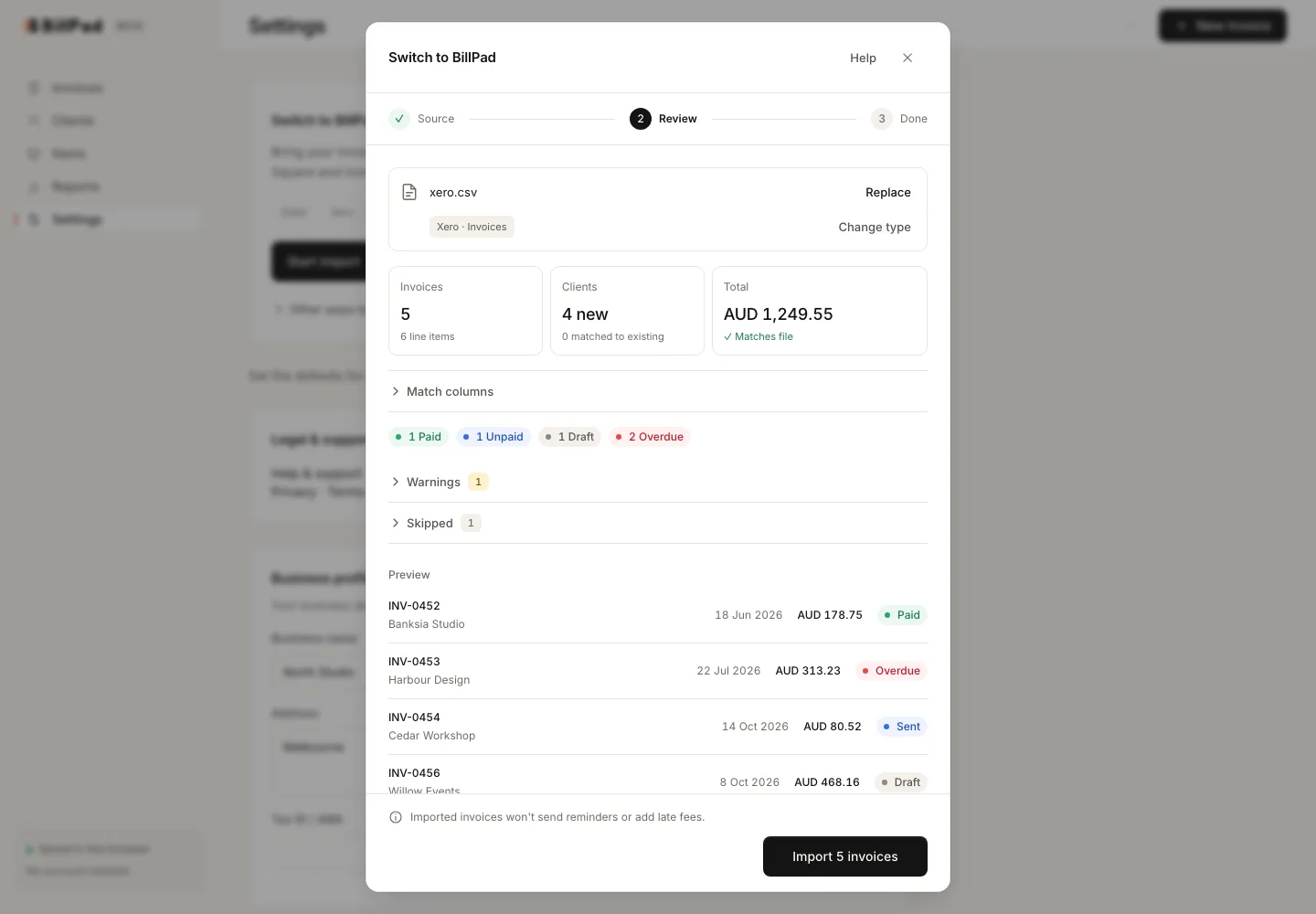
What to check
Invoices are grouped by invoice number and client. Paid amounts become payment records; drafts remain drafts. Credit notes, MYOB orders and quotes are skipped. Void or cancelled invoices can be included as archived when you select the offered option.
The shared beta limit is 100 documents including existing records. Only the newest eligible invoices that fit are selected; invoices above 100 lines are skipped whole. Imported invoices do not trigger automatic reminders or late fees.
Good to know
Many source profiles have not yet been verified against a real export. Read the source-specific caveat and treat the preview as a necessary check. A detected source badge is guidance, not proof that every field is correct. XLSX imports read only the first worksheet; older XLS files need conversion to CSV or XLSX first.
For products and clients, review Skip versus Update before confirmation. After importing, check several documents against the original system and keep both exports until you are satisfied.