
BillPad generates invoice PDFs on your device. You can save a file for your records, attach it in another app or print a copy. The PDF actions are separate from BillPad's account-based email delivery and hosted invoice links.
Choose an output
- Open an invoice or quote and complete any required fields.
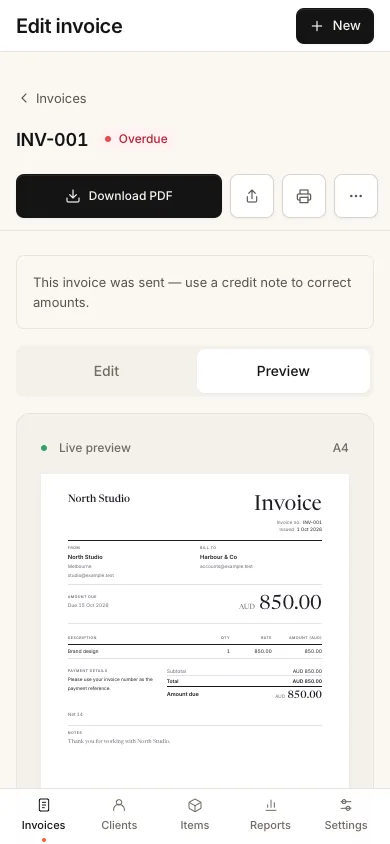
- Inspect the preview, including the client, dates, total and payment details.
- Choose Download PDF to create a PDF file.
- Choose Share to use file sharing if your browser or app supports it.
- Choose Print to open the browser's print interface.
On a phone, Preview shows the document and Edit returns to the form. If validation appears, correct the indicated field and try the action again. A PDF created from an incomplete draft may be blocked until the document is valid.
Browser and app behaviour
In a browser, Share uses the device's file share sheet when supported. Otherwise BillPad downloads the PDF so you can attach it manually in your email or messaging app.
In the iPhone and Android apps, PDF delivery uses the native share sheet. Android's Download PDF flow also offers to save a copy to Documents after sharing. The available destinations depend on the apps installed on your device.
Good to know
Saving, printing or opening a share sheet is not proof of delivery. If you send the file yourself, choose More then Mark sent. Do not choose a payment action unless the client has paid.
The bundled PDF fonts support Latin text and common punctuation. If export identifies an unsupported character, use Print as the suggested fallback or replace that character if doing so preserves the correct information. Check the result before sending. Native sharing failures can fall back to a browser download, which may behave differently inside an app.