
Each line describes work or goods supplied to your client. BillPad calculates the amount from the quantity and rate, then applies the document's discount and tax treatment. Keep descriptions clear enough for the client to recognise the work without a separate explanation.
Enter the work
- Open the invoice's Details tab and find Line items.
- Enter Description, Qty and Rate on the first line.
- Use Add line for each additional service or product.
- Review Tax on every line. A checked line uses the invoice tax settings; an unchecked line is not taxed.
- To remove an unwanted row, use its remove-line button. The final remaining row cannot be removed.
Use saved items
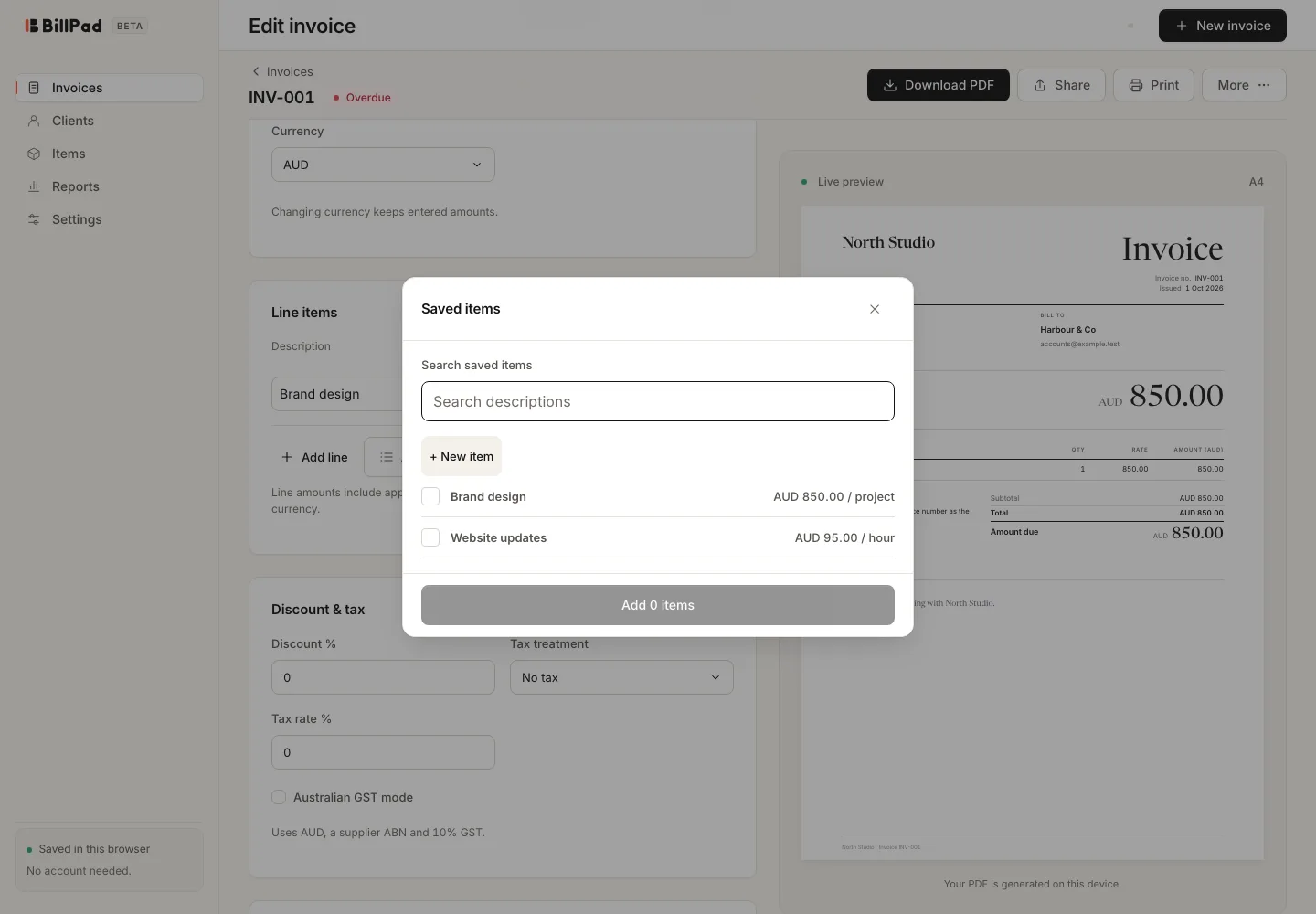
Choose Add saved item to open Saved items. Search the catalogue, select the items you need and use the add-items button, whose label reflects the selected count. You can also type in a description field to find matching saved items.
Use + New item in the picker to create a reusable entry, entering its description, rate, optional unit and Taxable choice. Choose Save item before adding it to the invoice.
Apply a discount
In Discount & tax, enter Discount %. This is a document percentage discount, not a separate fixed-amount coupon or promotion. Review the resulting line amounts and total, especially when some lines are taxable and others are not.
Good to know
Saved item rates use the invoice's current currency without conversion. A catalogue item is a starting point: check that the inserted quantity, rate and tax treatment match this job.
Keep each invoice within 100 lines. Imported invoices above that limit are skipped whole rather than silently truncated. If you need a very detailed supporting breakdown, organise the invoice into meaningful billable lines and keep the supporting detail separately.