
A sample invoice lets you explore BillPad before entering real business information. It contains fictional seller and client details, example services and a recorded amount paid. Treat it as a demonstration, not a document to issue to a customer.
Open the sample
- From the invoice area, choose Try a sample when that action is offered.
- Review the Bill to and From: sections. The sample uses Example Studio and The Sample Company.
- Look at Line items, including the quantity and rate for each service.
- Choose Design to compare templates and colours.
- On a narrow screen, select Preview to see the document layout. Return to Edit to change the details.
The sample's payment instructions explicitly ask you to add real payment details before sending. It is safer to start a fresh New invoice for your actual work, with your saved business profile and a real client selected.
What to explore
Try adjusting a quantity or rate and watching the total change. Compare No tax, Add tax to rates and Tax included in rates only as a calculation exercise. Open Design and inspect the effect of Paper size, Accent colour and the display switches.
You can also inspect Download PDF, Share and Print. These actions may show validation messages if you have removed required information or introduced unsupported characters.
Good to know
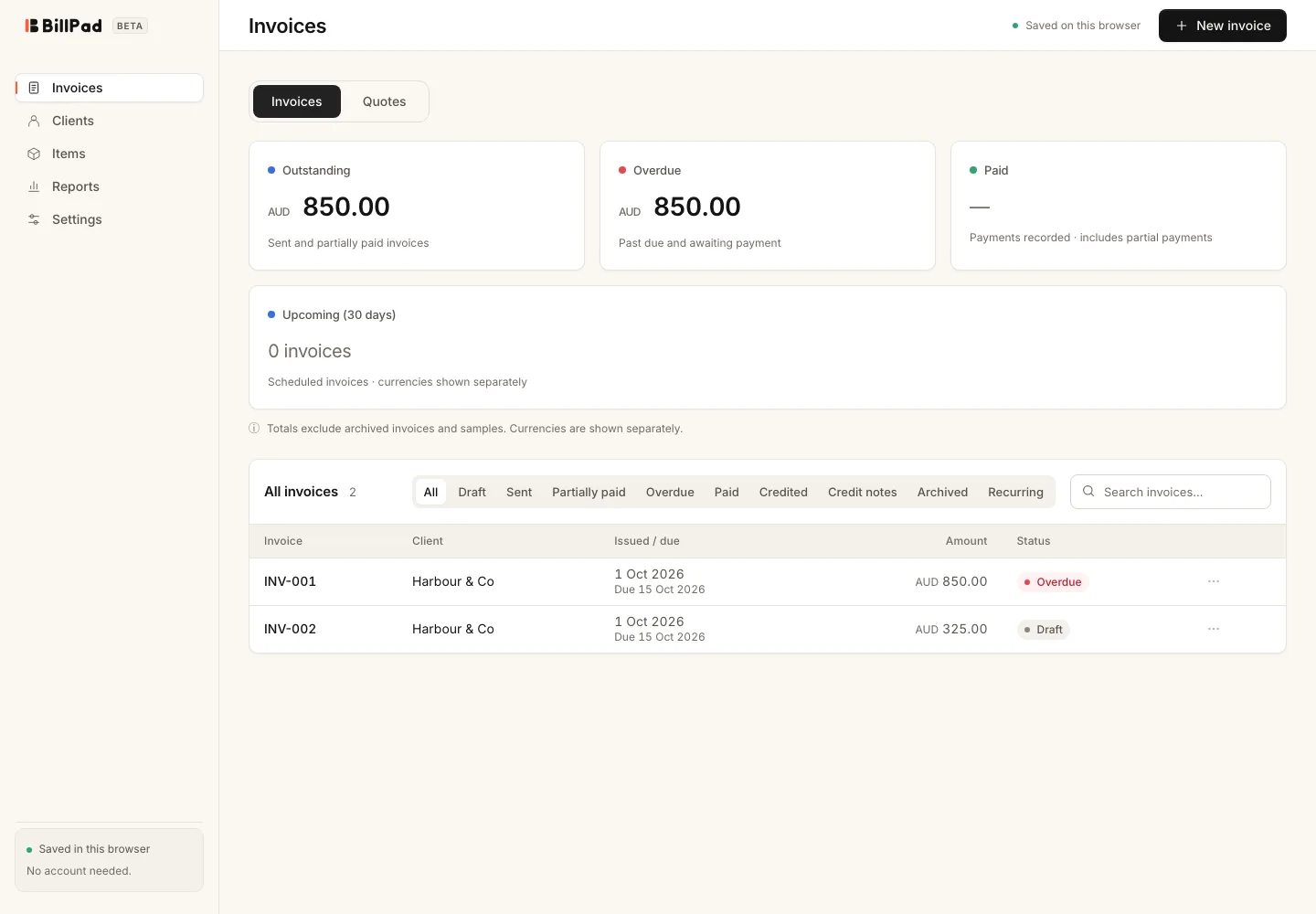
Samples are excluded from dashboard totals and reports. That makes them useful for learning, but it also means you should not simply repurpose a sample as your business's permanent invoice record.
Your sample is saved in the current workspace like other documents. Use Archive to move it out of the active list when you finish exploring. Keep backups of your real work separately, especially before trying an import or restore operation.