
BillPad calculates tax from the settings on each document. Start by choosing whether the amounts you enter already contain tax. A wrong inclusive or exclusive setting can change the invoice total even when every line price looks familiar.
Choose the tax treatment
- Open an invoice and find Discount & tax.
- Set Tax treatment to No tax, Add tax to rates or Tax included in rates.
- Enter the document's Tax rate % when tax applies.
- Review the Tax checkbox on each line. Clear it for a line that should not use the document tax rate.
- Check the tax amount and total in the preview before downloading or sending.
For example, a rate of 100 with 10% tax added gives 110 before any discount. If tax is included in a rate of 100, the overall amount stays 100 and BillPad extracts the included tax. Enter prices consistently with your selected treatment.
Use Australian GST mode
Australian GST mode uses AUD, a supplier ABN and 10% GST. The document validation checks the ABN format and checksum. This is a numerical check, not a live lookup of registration details. Correct the supplier's Tax ID / ABN if validation asks you to do so.
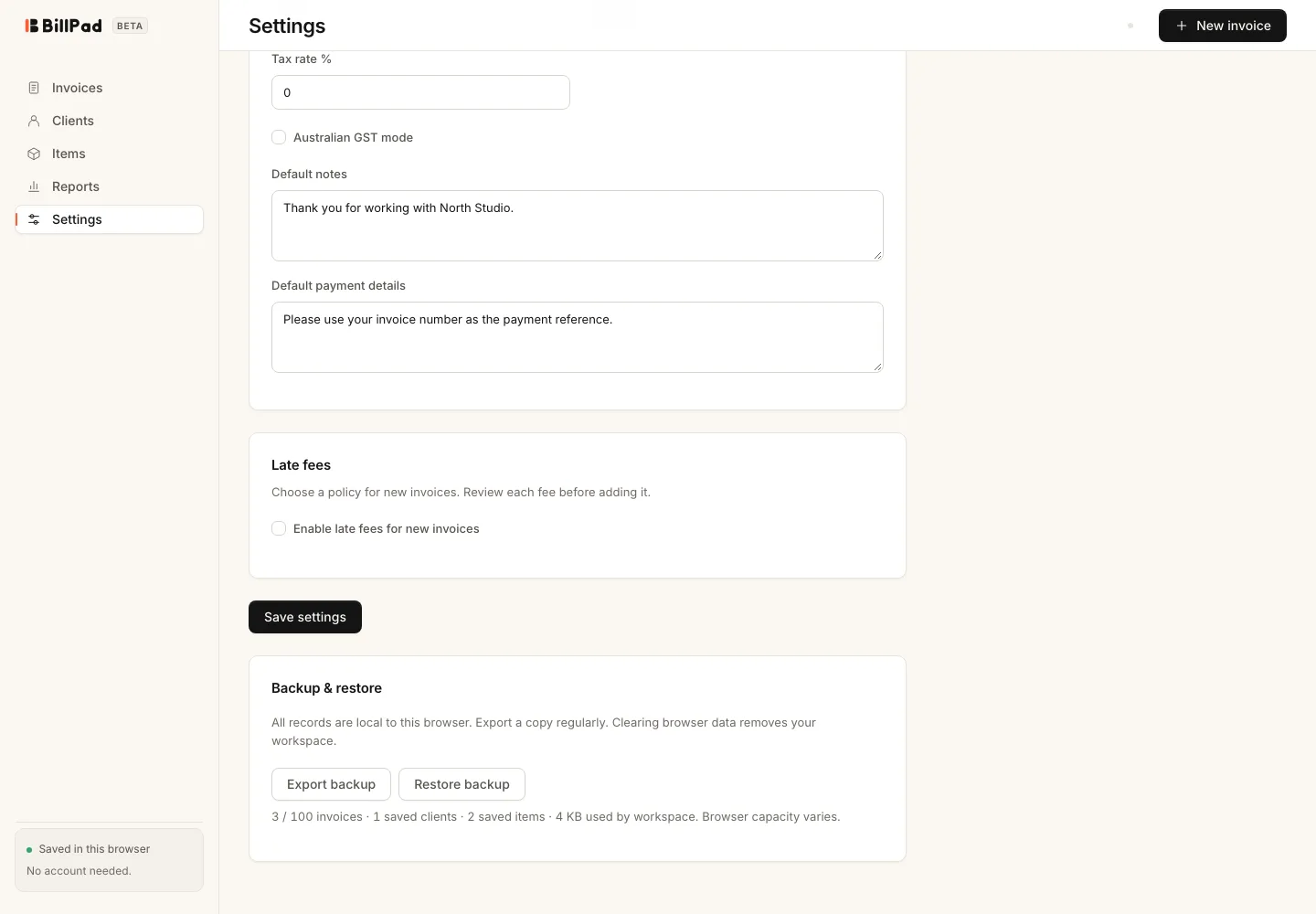
To establish defaults, open Settings, adjust Tax treatment, Tax rate % and Australian GST mode under Invoice defaults, then choose Save settings. Review older drafts separately rather than assuming a profile change has updated them.
Good to know
The standard editor gives each line a taxable checkbox, not a separate editable percentage field for every line. Imported mixed-tax invoices can carry warnings and gross summary amounts. Check those imports against the original before relying on their tax breakdown. This guide explains the controls; it does not decide which tax treatment applies to your business.