
A quote describes proposed work before it becomes an invoice. BillPad keeps quotes separate from invoice receivables so that a proposal does not look like money already owed. You can reuse your saved clients, items and document designs while preparing it.
Create and send a quote
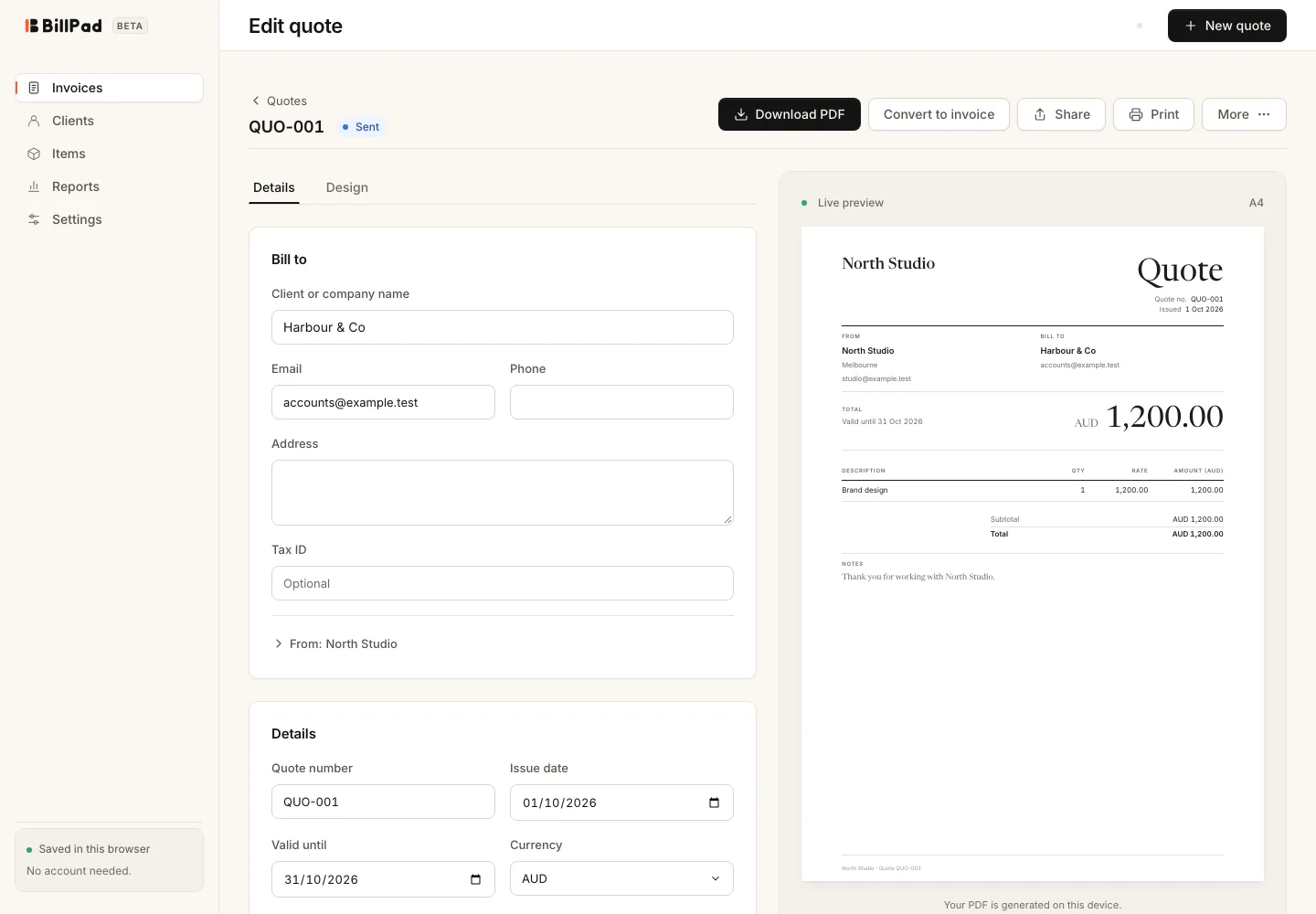
- Choose Quotes in the document area, then New quote.
- Enter the client and business details, line items, currency and tax treatment.
- Review the quote number, issue date and Valid until date.
- Inspect the preview and choose Download PDF, Share or Print.
- After sending it yourself, choose More then Mark sent.
Needs a signed-in account: emailing the quote through Send and Send email, or creating a hosted quote link. The recipient can read the hosted document without editing your workspace.
Record the decision
Use More then Mark accepted or Mark declined to reflect the client's decision. Quote statuses shown in the editor include Draft, Sent, Accepted, Declined and Archived. Acceptance is recorded by you; these actions are not an electronic signature process.
Convert agreed work
- Open the quote you want to invoice.
- Choose Convert to invoice.
- Review the new invoice number, issue date, payment terms and due date.
- Check that the copied client, work and design still match the agreement.
- Send the invoice when it is ready.
Good to know
Conversion marks the quote accepted and links it to the new invoice. It does not record a payment. A declined quote cannot be converted through this action. If the quote has already been converted, BillPad asks before creating another invoice so you can avoid billing the same work twice.
Quotes and invoices share the workspace's 100-document beta limit. Archiving an old quote retains it and does not free that document slot.