
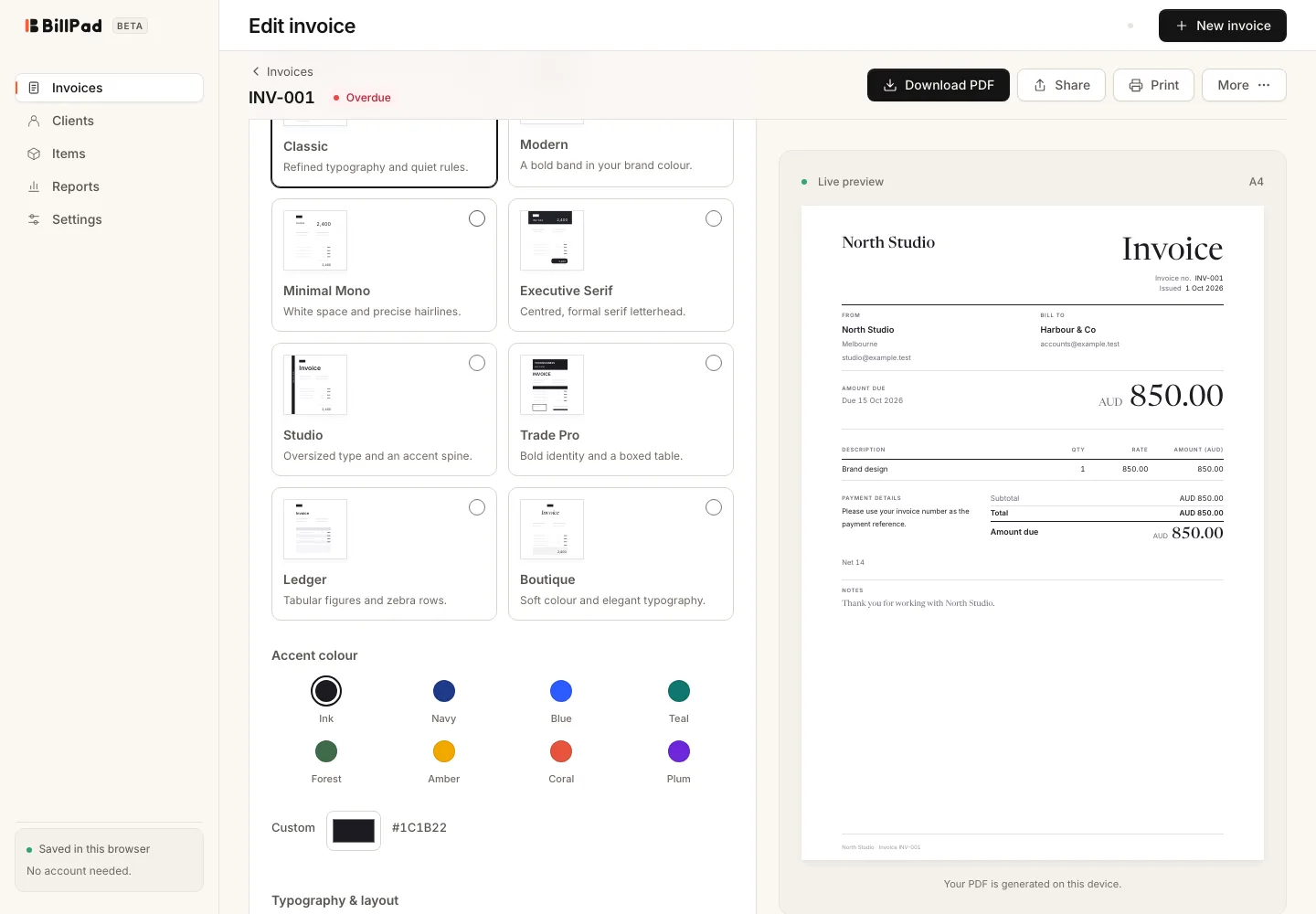
Open Design on an invoice to change how it looks without changing its amounts. The preview lets you compare the available layouts before exporting. Choose a style that keeps your client details, descriptions and payment instructions easy to read.
Choose a template
| Template | Style |
|---|---|
| Classic | A letterhead layout with quiet table rules. |
| Modern | A bold accent band and tinted table. |
| Minimal Mono | White space and fine, minimal rules. |
| Executive Serif | A formal layout with a prominent header and rounded total. |
| Studio | A large title with an accent spine. |
| Trade Pro | A strong job header and boxed table. |
| Ledger | Tabular figures, zebra rows and a structured total. |
| Boutique | Soft colour, elegant typography and a tinted total. |
Make the design yours
- Open the invoice and select Design.
- Choose a Template.
- Set Accent colour using a preset or Custom hex colour.
- Under Typography & layout, choose Font pairing and Logo position.
- Under Show on invoice, review Tax ID / ABN, Payment details, Notes and Item units.
- Use Upload logo if you want your business artwork on the document.
- Choose A4 or US Letter under Paper size and inspect the preview.
Save a default
Choose Set as default for new invoices to save the selected design to your business profile. This is a default for newly created documents; check existing invoices individually rather than assuming they have all changed.
Good to know
The font choices are Inter, Newsreader + Inter and Inter Display. A template name does not mean you can upload arbitrary fonts. Colours may be adjusted for readable contrast in the rendered document.
Before sending, inspect both short and long descriptions in your chosen layout. Hiding a field changes its display, not the underlying accounting data or validation requirements. Keep essential payment instructions visible when the client needs them to pay.