
Sign-in and sync are available in the BillPad iPhone and Android apps and are rolling out on the web. If you don't see Sign in in Settings, you can keep using BillPad without an account. The iPhone and Android apps require sign-in.
Choose a method
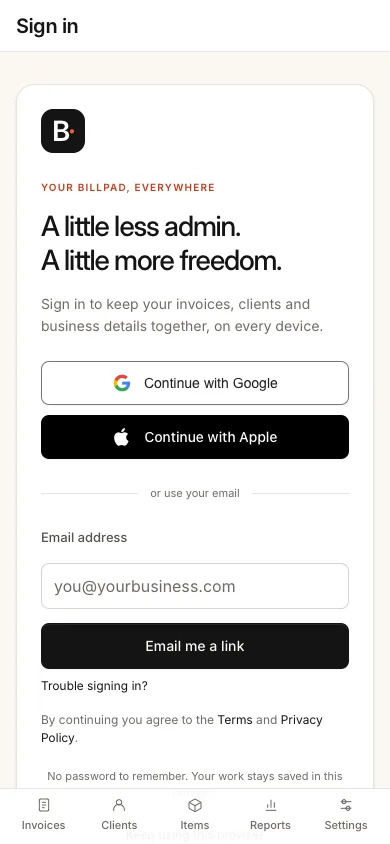
- Open Settings and choose Sign in to sync when available, or use the app's sign-in screen.
- Choose Continue with Google or Continue with Apple to use that provider.
- Alternatively, enter your email address and choose Email me a link.
- Open the emailed link promptly and let BillPad complete sign-in.
- Check the email shown under Your account in Settings before working on another device.
Email links are single-use and expire after 15 minutes. If one has expired or already been used, request another link. Avoid forwarding a sign-in email: anyone who can use the valid link may gain access to your account.
Keep the same identity
Use the same method and account on each device. If you used Apple's Hide My Email, BillPad may show a private relay email rather than your usual address. Continuing with the same Apple identity is safer than assuming an email link sent to a different address reaches the same workspace.
Provider sign-in can fail if the service is not configured or a fresh sign-in flow cannot complete. A provider error is not evidence that your existing invoices were deleted. Use the sign-in troubleshooting guide if the screen displays an error.
Good to know
Needs a signed-in account: sync, BillPad email sending, hosted invoice links and viewed activity, reminders, Stripe payment links and Apple Watch. Local browser editing and PDF downloads do not depend on signing in.
After signing in, give sync time to finish before sending an invoice. If you see a workspace conflict, export a backup and review the conflict rather than repeatedly switching identities. Signing out leaves the local workspace on this device; it is not an account deletion action.